![[ANSYS, Inc. Logo]](fluentlogo.gif)


|
|
|
Electronic versions of the ANSYS FLUENT documentation are also provided in HTML format. These files are used for the ANSYS FLUENT help system and can be viewed using a standard web browser. To make it easier for you to find the information you need, there are many built-in navigation tools available as well as printing options and other viewing options. The following sections describe the various options available to you when you are using the HTML documentation.
Navigating the HTML Files
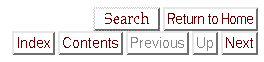
When you are viewing the HTML version of a manual in your browser, a set of navigation buttons appear at the upper right and lower right corners of the HTML page, as shown in Figure 1.2.2.
The navigation buttons are as follows:
Note that these buttons do not necessarily appear on all pages. Sometimes they appear but are inactive; in such cases they are "grayed out'', as the Previous and Up buttons are in Figure 1.2.2.
Finding Information in the HTML Files
Three tools are available to help you find the information you are looking for in an HTML version of a manual:
Index
The index gives an alphabetical list of keywords, each linked to the relevant section(s) of the manual. You can access the index by clicking the Index button that appears at the top and bottom of the page. Note that the Index button does not appear if the manual does not have an index.
In a larger manual, the index is split into a number of pages, each containing keywords starting with a particular letter; in this case, the Index button will take you to the "A'' index page.
Table of Contents
The table of contents gives a list of the titles of the chapters, sections, and subsections of the manual in the order in which they appear. Each title is linked to the corresponding chapter or section. You can access the table of contents by clicking the Contents button that appears at the top and bottom of the page. Note that the Contents button does not appear if the manual does not have a table of contents.
Browser Search
The full text search engine (Figure 1.2.3) allows you to search the HTML manual for either single or multiple keywords. You can access the full text search engine by clicking the Search button that appears at the top of the page. To display the popup window and use the search engine, Javascript should be enabled in your web browser.
To use the search engine, enter a specific term or keyword(s) in the text field and click the Search button. By default, the search engine will look for pages that contain any keyword input (Boolean OR). If you insert a + before the keyword input, then the search engine will look for pages that contain all of the keywords provided in the text field (Boolean AND). Search results appear in the lower half of the search engine popup window. When search results extend below the bottom edge of the window, you can access those results by selecting the lower portion of the window and pressing the <Page Down> button on the keyboard in order to activate scroll bars in the window.
You can also use the search capability provided by your browser to find words or expressions on a single page. For example, you can use the Edit/Find (on This Page)... menu item in Internet Explorer to search for the word "turbulence'' on a page of the manual.
Printing Portions of a Manual
Although you can print pages of an HTML version of a manual from your browser, a printout with higher quality can be obtained by using the PDF files provided with the ANSYS FLUENT installation or on the User Services Center. See Section 1.2.2 for details.
Modifying the Appearance of the HTML Files
There are a few things that you might want to change about the way your browser displays the HTML files in order to increase their usefulness.
Font Size
The absolute size of the text that you see when viewing your ANSYS FLUENT documentation is dependent on a number of factors, including the resolution of your monitor screen. You can adjust the text size by changing the default font size of your browser. In Internet Explorer, for example, you can change the font size by selecting an option from the View/Text Size menu. Try several sizes to see the effect on the appearance of the manuals, and choose the one that is best for you.
Page Width
While reading a manual, you may find a figure that is wider than your browser's window. As a result, part of the figure will be hidden from view. To see all of the figure, you can use the horizontal scroll bar at the bottom of your browser's window, or increase your browser's window size.
You might also want to adjust the window size to increase or decrease the page width to a comfortable reading width.
Tool Tips
When viewing the manuals with certain browsers, information about a figure will be displayed if you put your cursor over it. However, this information is not meaningful for most users, and you might find it somewhat distracting. On some browsers, you can disable the display of "Tool Tips" in the preferences menu.
Previous:
1.2.2 Using the PDF