![[ANSYS, Inc. Logo]](fluentlogo.gif)


|
|
|
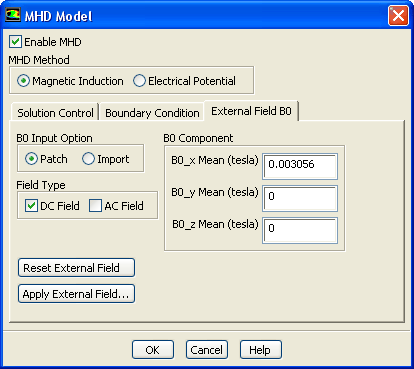
Application of an external magnetic field to the computation domain is done under the External Field B0 tab in the MHD Model dialog box, as shown in Figure 4.3.3. Two B0 Input Options are available for setting up the external magnetic field. One option is to Patch the computational domain with a constant ( DC Field) and/or varying ( AC Field) type. The other option is to Import the field data from a magnetic data file that you provide.
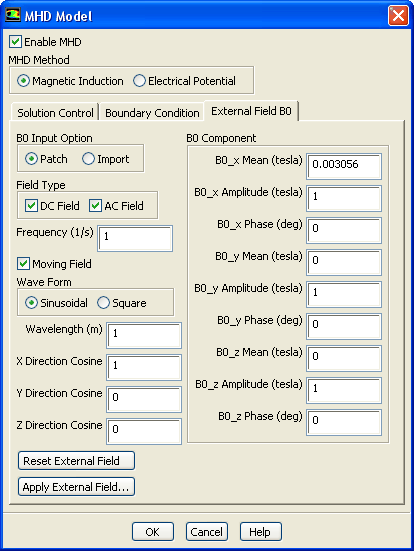
With the Patch option enabled, the AC field can be expressed as a function of time (specified by Frequency), and space (specified by wavelength, propagation direction and initial phase offset). The space components are set under the B0 Component, as in Figure 4.3.3.
You can also specify a Moving Field with a wave form that is either a sinusoidal or a square wave function (Figure 4.3.4). Definitions for the sinusoidal and square wave forms of patched magnetic fields are provided in Appendix B.
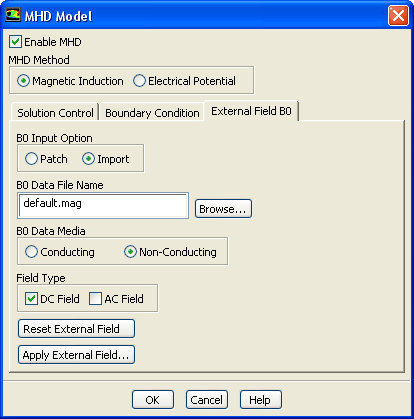
Selecting Import under the B0 Input Option in the MHD Model dialog box, as seen in Figure 4.3.5, will result in the import of magnetic field data. The data file name can be entered in the B0 Data File Name field, or selected from your computer file system using the Browse... button. Magnetic data can also be generated using a third-party program such as MAGNA. The required format of the magnetic field data file is given in Appendix C.
When using the Import option, the B0 Data Media is either set to Non-Conducting or Conducting, depending on the assumptions used in generating the magnetic field data. (These choices correspond to "Case 1'' and "Case 2'', respectively, as discussed in Section 2.2.)
The Field Type is determined by the field data from the data file. The choice of either the DC Field or the AC Field option in the dialog box is irrelevant if the import data is either DC or AC. However, selection of both options indicates that data of both field types are to be imported from the data file, and superimposed together to provide the final external field data. Make sure that the data file contains two sections for the required data. See Appendix C for details on data file with two data sections.
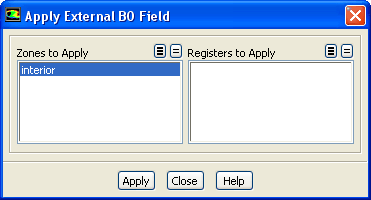
The Apply External Field... button opens the Apply External B0 Field dialog box as shown in Figure 4.3.6. To apply the external field data to zones or regions in the computational domain, select the zone names or register names of marked regions from the dialog box and click the Apply button.
The Reset External Field button sets the external magnetic field variable to zero.
Previous:
4.3.2 Selecting an MHD