1.
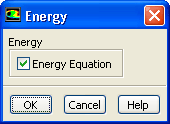
Enable heat transfer by enabling the energy equation.
ModelsEnergyEdit...
2.
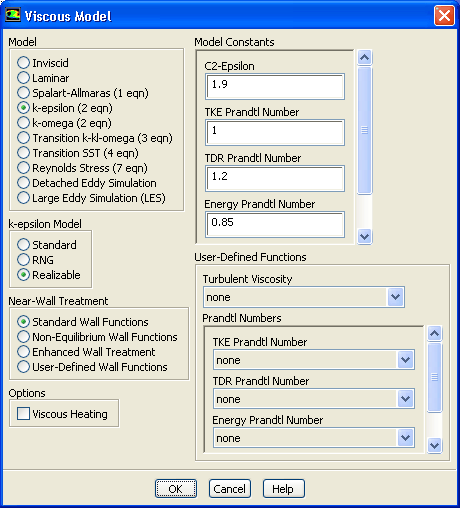
Enable the realizable
-
turbulence model.
ModelsViscousEdit...
(a)
Select
k-epsilon (2 eqn) in the
Model list.
(b)
Select
Realizable in the
k-epsilon Model list.
The realizable
-
model gives a more accurate prediction of the spreading rate of both planar and round jets than the standard
-
model.
(c)
Retain the default selection of
Standard Wall Functions in the
Near-Wall Treatment list.
(d)
Click
OK to close the
Viscous Model dialog box.
3.
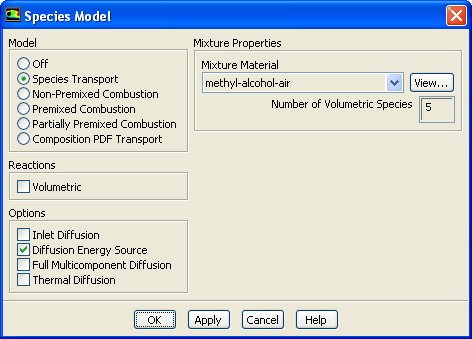
Enable chemical species transport and reaction.
ModelsSpeciesEdit...
(a)
Select
Species Transport in the
Model list.
(b)
Select
methyl-alcohol-air from the
Mixture Material drop-down list.
The
Mixture Material list contains the set of chemical mixtures that exist in the
ANSYS FLUENT database. You can access a complete description of the reacting system by selecting one of the pre-defined mixtures. The chemical species in the system and their physical and thermodynamic properties are defined by the selection of the mixture material. You can alter the mixture material selection or modify the mixture material properties using the
Create/Edit Materials dialog box.
(c)
Click
OK to close the
Species Model dialog box.
When you click
OK,
ANSYS FLUENT will list the properties that are required for the models you have enabled. An
Information dialog box will open, reminding you to confirm the property values that have been extracted from the database.
(d)
Click
OK in the
Information dialog box to continue.
![[ANSYS, Inc. Logo]](fluentlogo.gif)


 Models
 Models

 Energy
 Edit...
 -
-
 turbulence model.
 Models

 Viscous
 Edit...
 -
-
 model gives a more accurate prediction of the spreading rate of both planar and round jets than the standard
 -
-
 model.
  Models

 Species
 Edit...