Step 9: Postprocessing
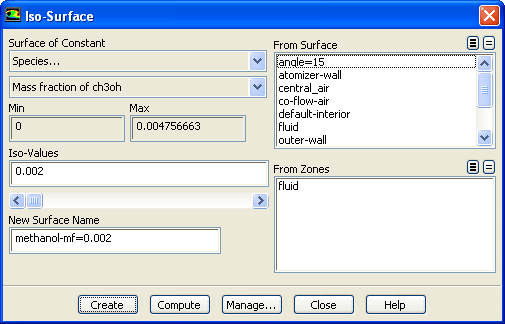
1. Create an isosurface of the methanol mass fraction.
Surface
Iso-Surface...
(a) Select
Species...
and
Mass fraction of ch3oh
from the
Surface of Constant
drop-down lists.
(b) Click
Compute
to update the minimum and maximum values.
(c) Enter
0.002
for
Iso-Values
.
(d) Enter
methanol-mf=0.002
for the
New Surface Name
.
(e) Click
Create
and the close the
Iso-Surface
dialog box.
2. Display the isosurface you just created (
methanol-mf=0.002
).
General
Display...
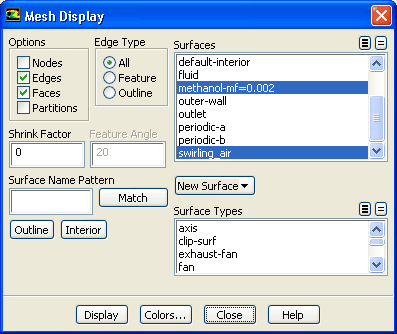
(a) Deselect
atomizer-wall
and select
methanol-mf=0.002
in the
Surfaces
selection list.
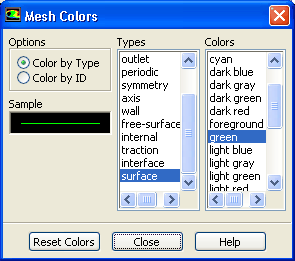
(b) Click the
Colors...
button to open the
Mesh Colors
dialog box.
i. Select
surface
in the
Types
list and
green
in the
Colors
list.
Scroll down the
Types
list to locate
surface
. The isosurface will now be displayed in green, which contrasts better with the rest of the mesh.
ii. Close the
Mesh Colors
dialog box.
(c) Click
Display
in the
Mesh Display
dialog box.
The graphics display will be updated to show the isosurface.
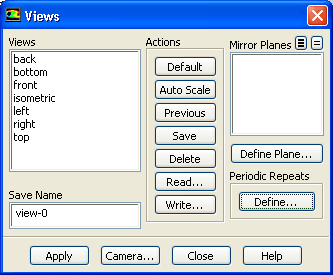
3. Modify the view to include the entire atomizer.
Graphics and Animations
Views...
(a) Click
Define...
to open the
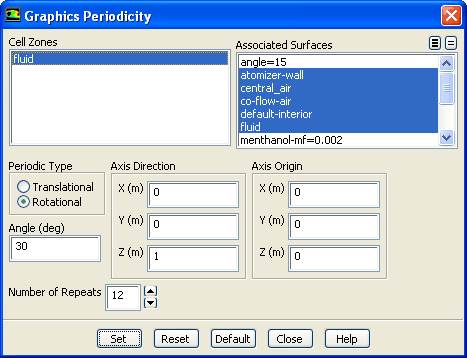
Graphics Periodicity
dialog box.
i. Select
fluid
from the
Cell Zones
list.
ii. Make sure that
Rotational
is selected from the
Periodic Type
list and the
Number of Repeats
is set to
12
.
iii. Click
Set
and close the
Graphics Periodicity
dialog box.
(b) Click
Apply
and close the
Views
dialog box.
(c) Click
Display
and close the
Mesh Display
dialog box.
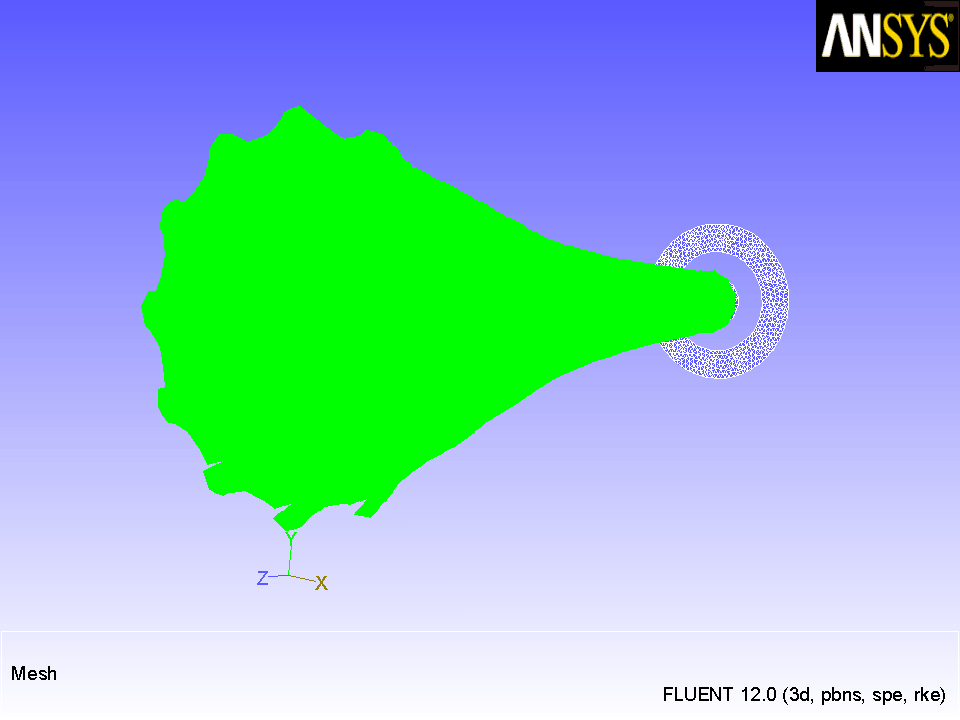
(d) Use the mouse to obtain the view shown in Figure
17.8
.
Figure 17.8:
Full Atomizer Display with Surface of Constant Methanol Mass Fraction
4. Save the case and data files (
spray3.cas.gz
and
spray3.dat.gz
).
File
Write
Case & Data...
Previous:
Step 8: Solution
Up:
Modeling Evaporating Liquid Spray
Next:
Summary
Release 12.0 ©
ANSYS, Inc.
2009-02-09
![[ANSYS, Inc. Logo]](fluentlogo.gif)


 Iso-Surface...
 General
 Display...
 Graphics and Animations
 Views...
 Write
Write
 Case & Data...
Previous:
Step 8: Solution
Case & Data...
Previous:
Step 8: Solution