[ANSYS, Inc. Logo] return to home search
next up previous contents

Step 9: Solution

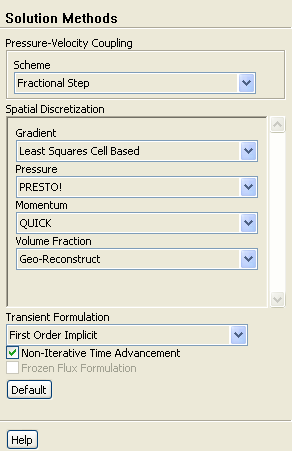
1.   Set the solution methods.

figure Solution Methods

figure

(a)   Enable Non-Iterative Time Advancement.

   The non-iterative time advancement (NITA) scheme is often advantageous compared to the iterative schemes as it is less CPU intensive. Although smaller time steps must be used with NITA compared to the iterative schemes, the total CPU expense is often smaller. If the NITA scheme leads to convergence difficulties, then the iterative schemes (e.g. PISO, SIMPLE) should be used instead.

(b)   Select Fractional Step from the Scheme drop-down list in the Pressure-Velocity Coupling group box.

(c)   Retain the default selection of Least Squares Cell Based from the Gradient drop-down list in the Spatial Discretization group box.

(d)   Retain the default selection of PRESTO! from the Pressure drop-down list.

(e)   Select QUICK from the Momentum drop-down list.

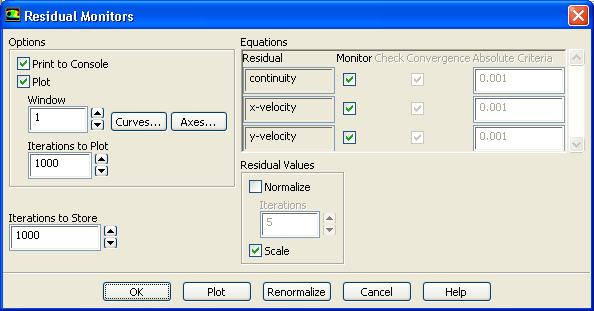
2.   Enable the plotting of residuals during the calculation.

figure Monitors figure figure Residuals figure Edit...

figure


(a)   Make sure Plot is enabled in the Options group box.

(b)   Click OK to close the Residual Monitors dialog box.

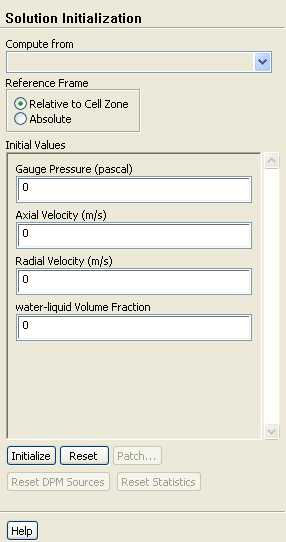
3.   Initialize the solution using the default initial values.

figure Solution Initialization

figure

(a)   Retain the default settings for all the parameters and click Initialize.

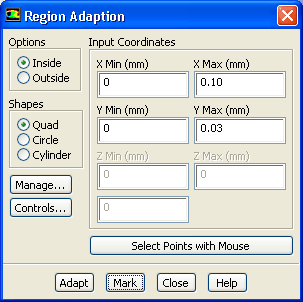
4.   Define a register for the ink chamber region.

Adapt $\rightarrow$ Region...

figure


(a)   Retain the default setting of 0 mm for X Min and Y Min in the Input Coordinates group box.

(b)   Enter 0.10 mm for X Max.

(c)   Enter 0.03 mm for Y Max.

(d)   Click Mark.

   ANSYS FLUENT will report in the console that 1500 cells were marked for refinement while zero cells were marked for coarsening.

Extra:   You can display and manipulate adaption registers, which are generated using the Mark command, using the Manage Adaption Registers dialog box. Click the Manage... button in the Region Adaption dialog box to open the Manage Adaption Registers dialog box.

(e)   Close the Region Adaption dialog box.

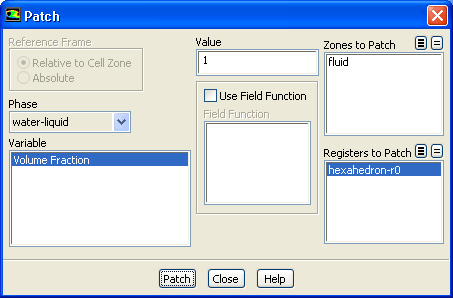
5.   Patch the initial distribution of the secondary phase ( water-liquid).

figure Solution Initialization figure Patch...

figure

(a)   Select water-liquid from the Phase drop-down list.

(b)   Select Volume Fraction from the Variable list.

(c)   Enter 1 for Value.

(d)   Select hexahedron-r0 from the Registers to Patch selection list.

(e)   Click Patch and close the Patch dialog box.

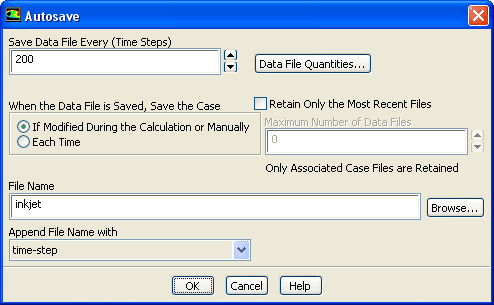
6.   Request the saving of data files every 200 steps.

figure Calculation Activities ( Autosave Every (Time Steps)) figure Edit....

figure

(a)   Enter 200 for Save Data File Every (Time Steps).

(b)   Make sure that time-step is selected from the Append File Name with drop-down list.

(c)   Enter inkjet for the File Name.

   ANSYS FLUENT will append the time step value to the file name prefix ( inkjet). The standard .dat extension will also be appended. This will yield file names of the form inkjet-1-00200.dat, where 200 is the time step number.

Optionally, you can add the extension .gz to the end of the file name (e.g., inkjet.gz), which will instruct ANSYS FLUENT to save the data files in a compressed format, yielding file names of the form inkjet-1-00200.dat.gz.

(d)   Click OK to close the Autosave dialog box.

7.   Save the initial case file ( inkjet.cas.gz).

File $\rightarrow$ Write $\rightarrow$ Case...

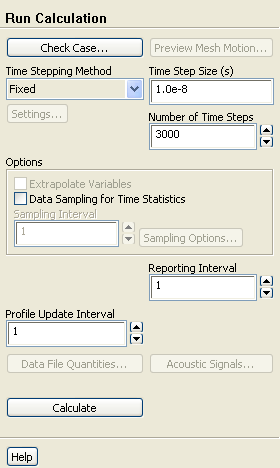
8.   Run the calculation.

figure Run Calculation

figure

(a)   Enter 1.0e-8 seconds for the Time Step Size (s).

Note:   Small time steps are required to capture the oscillation of the droplet interface and the associated high velocities. Failure to use sufficiently small time steps may cause differences in the results between platforms.

(b)   Enter 3000 for the Number of Time Steps.

(c)   Retain the default selection of Fixed in the Time Stepping Method drop-down list.

(d)   Click Calculate.

  The solution will run for 3000 iterations.


next up previous contents Previous: Step 8: Boundary Conditions
Up: Using the VOF Model
Next: Step 10: Postprocessing
Release 12.1 © ANSYS, Inc. 2009-09-09