(b)
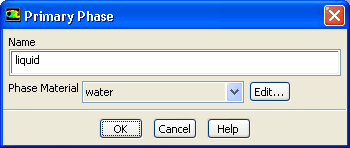
Retain the default selection of
water from the
Phase Material drop-down list.
(c)
Click
OK to close the
Primary Phase dialog box.
2.
Specify water vapor as the secondary phase.
Phasesphase-2Edit...
(a)
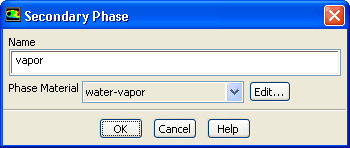
Enter
vapor for
Name.
(b)
Select
water-vapor from the
Phase Material drop-down list.
(c)
Click
OK to close the
Secondary Phase dialog box.
3.
Enable the cavitation model.
PhasesInteraction...
(a)
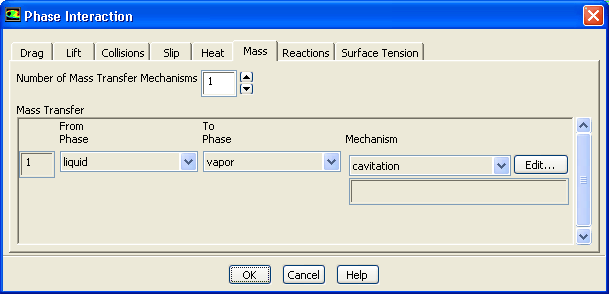
Click the
Mass tab.
i.
Set
Number of Mass Transfer Mechanisms to
1.
ii.
Ensure that
liquid is selected from the
From Phase drop-down list in the
Mass Transfer group box.
iii.
Select
vapor from the
To Phase drop-down list.
iv.
Select
cavitation from the
Mechanism drop-down list.
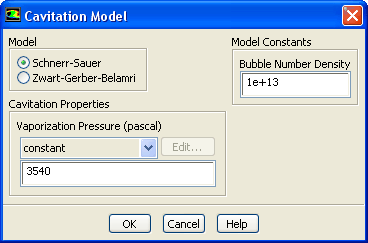
The
Cavitation Model dialog box will open to show the cavitation inputs.
a.
Retain the default settings.
b.
Retain the value of
3540 for
Vaporization Pressure.
The vaporization pressure is a property of the working liquid, which depends mainly on the liquid temperature. The default value is the vaporization pressure of water at a temperature of 300
.
c.
Click
OK to close the
Cavitation Model dialog box.
(b)
Click
OK to close the
Phase Interaction dialog box.
![[ANSYS, Inc. Logo]](fluentlogo.gif)


 Phases
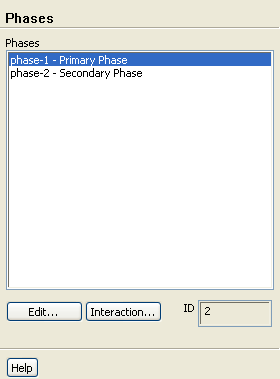
 Phases

 phase-1
 Edit...
 Phases

 phase-2
 Edit...
 Phases
 Interaction...
 for
Vaporization Pressure.
for
Vaporization Pressure.
 .
.