[ANSYS, Inc. Logo] return to home search
next up previous contents

Step 2: General Settings

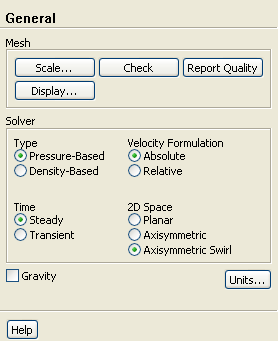
figure General

1.   Check the mesh.

figure General figure Check

   ANSYS FLUENT will perform various checks on the mesh and will report the progress in the console. Make sure that the minimum volume is a positive number.

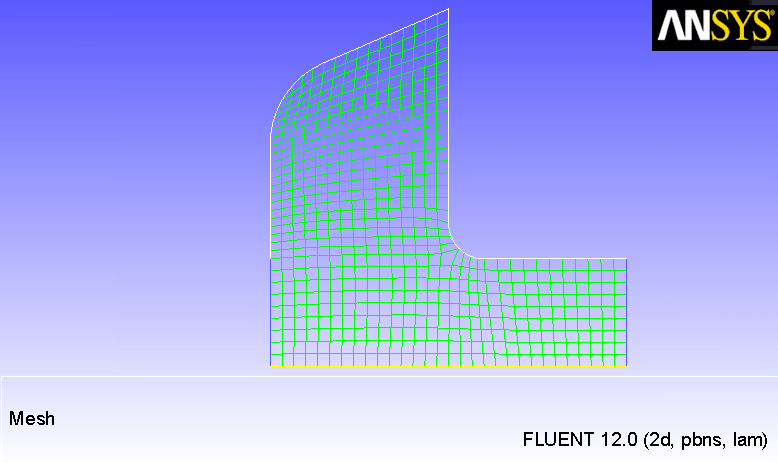
2.   Examine the mesh (Figure  22.2).

Figure 22.2: Mesh Display
figure

3.   Select Axisymmetric Swirl from the 2D Space list.

figure General

figure

  The geometry comprises an axisymmetric bowl. Furthermore, swirling flows are considered in this problem, so the selection of Axisymmetric Swirl best defines this geometry.

Also, note that the rotation axis is the x-axis. Hence, the x-direction is the axial direction and the y-direction is the radial direction. When modeling axisymmetric swirl, the swirl direction is the tangential direction.

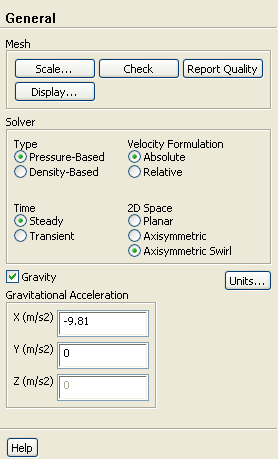
4.   Add the effect of gravity on the model.

figure General figure figure Gravity

figure

(a)   Enable Gravity.

(b)   Enter -9.81 ${\rm m/s}^2$ for X in the Gravitational Acceleration group box.


next up previous contents Previous: Step 1: Mesh
Up: Modeling Solidification
Next: Step 3: Models
Release 12.0 © ANSYS, Inc. 2009-02-09